Render Mermaid online, or draw on a free canvas: paste an AI reply, export Word, PowerPoint, PNG
Ask ChatGPT or Claude for a flowchart and you usually get a block of Mermaid code. Diagramate works two ways: paste the whole reply and it picks out the code, renders it and exports the file; when you'd rather arrange things by hand, move the diagram onto a free canvas to drag, relabel and sketch, or start from a blank canvas. Both modes are free, no account needed.
Paste an AI reply, get the diagram
Paste everything: the Mermaid code inside is detected and rendered within half a second. Switch themes, edit the text, download PNG, SVG, PDF, Word or PowerPoint.
Drag, relabel, sketch
Move the rendered diagram onto an embedded Excalidraw whiteboard: flowcharts, sequence, class, state and ER diagrams split into shapes you can drag; other types come in as one picture. Or start from a blank canvas.
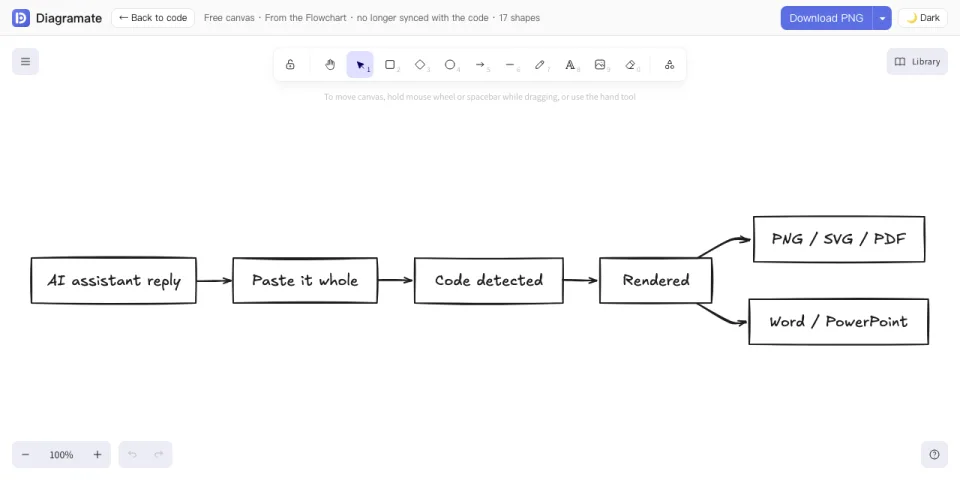
To bring a diagram over: render it in the editor first, then click “Canvas” in the top bar.
How the two modes work together
The code is the single source of truth and the canvas is a one-way door: render from code first, move onto the canvas when you want to arrange by hand.
Code first, canvas second
Get Mermaid code from the AI, then render it in the editor, switch themes, fix errors or use AI fix. The engine does the layout, so relabeling or adding a step is a code change and the diagram re-flows every time.
Separate after the conversion
Changes on the canvas are never written back to the code, and code changes don't touch the canvas. “Back to code” takes you back at any time and the canvas stays on this device; to catch up with newer code, use “Convert again” in the canvas menu, which replaces the whole canvas.
Both sides export files
The editor and the canvas each have their own download menu: PNG, SVG, PDF, Word and PowerPoint. The canvas also saves .excalidraw files you can reopen and keep drawing. Rendering and export happen in your browser.
From code to diagram in three steps
- Step 1
Ask the AI for code
Tell your AI assistant “draw a … diagram in Mermaid”. Naming the syntax keywords for the diagram type makes the reply far more likely to render on the first try.
- Step 2
Copy the whole reply, paste it here
Hit “Copy” under the reply and paste everything. No need to cut out the code block: the explanation around it is ignored. The diagram appears within half a second.
- Step 3
Pick a theme, download
Six themes, applied instantly. Click “Download PNG”, or open the menu for SVG, PDF, Word and PowerPoint, or copy the image to the clipboard. Click “Canvas” to move the diagram onto the free canvas.
Getting started
New here? Four short guides take you from getting the code to exporting a file, about 15 minutes in all. Or jump straight to your scenario: flowcharts, mind maps, sequence diagrams, Gantt charts, research roadmaps, the free canvas, sharing and cloud save, draw.io.
- Part 1 · About 5 minFive-minute start: paste an AI reply, get a diagram, download itRead this first. The two modes, what each part of the editor does, the shortest route from pasting to a PNG or Word file, and how it works on a phone.
- Part 2 · About 4 minGetting Mermaid code that renders on the first tryHow to phrase the prompt so the reply renders straight away, naming the diagram type's keyword, asking for a single code block, what the “Copy” button in ChatGPT and Claude gives you, and how to paste it.
- Part 3 · About 4 minEdit, lay out and fixWhat to do once the diagram is on screen, double-click to rename a node, change direction and spacing with “Layout”, add steps and shapes in the code, read the error bar, jump to the line, use AI fix, and tidy the code with AI when you would rather not touch it.
- Part 4 · About 3 minExport to Word, PowerPoint and PDF, or copy to the clipboardWhich of the five formats to use, how to choose scale and transparency, what the Word and PowerPoint files contain and how to edit later, and packing several diagrams into one zip.
What the free canvas can do
The canvas is Excalidraw (the MIT-licensed whiteboard) embedded as is: the toolbar is all there, and text is set in a hand-drawn style font served from this site.
Five diagram types split into shapes
Flowcharts, sequence, class, state and ER diagrams arrive as separate nodes, connectors and labels: drag, relabel, delete or add more.
Everything else comes in as one picture
Gantt charts, pie charts, mind maps, timelines and the rest are rendered in your current theme and placed as a single image you can position, resize and annotate.
Sketching and a library
Rectangles, ellipses, arrows, lines, text, freehand, images and an eraser; save frequently used shapes to a library, or open someone else's .excalidraw file.
Saved on this device only
The canvas lives in this browser: nothing is uploaded, and it never enters cloud save or share links. Past 4 MB you're asked to download an .excalidraw file to keep it.
Where you paste from, what you export
Paste sources (tested)
Whole replies copied with the “Copy” button in ChatGPT and Claude. All three shapes are detected: a code block tagged mermaid, an untagged code block, and bare code without any fences. Replies from other assistants work the same way as long as they contain Mermaid code.
Export formats
- PNG (2x / 3x, transparent or solid background), SVG
- PDF (high-resolution bitmap, page sized to the diagram)
- Word (docx) and PowerPoint (pptx): high-resolution image embedded, the source code appended at the end so you can come back and edit
- Copy PNG to the clipboard and paste it straight into a chat or document
- The free canvas downloads the same set (PNG, SVG, PDF, Word, PowerPoint) plus .excalidraw files
Six themes, always free, with custom accent colors
Light, dark, and four designed palettes. What you see in the preview is what lands in the file. Click one to apply it in the editor. Lite members can change one accent color and get a whole palette derived from it.
- LightWhite background, the default for documents and slides
- DarkDark background, for dark pages
- Ink TealWarm off-white + teal grey, for papers and technical docs
- CinnabarWarm cream + cinnabar red, for reports and slides
- IndigoCool white + indigo, for business and product docs
- Ink BlackDeep ink + pale gold, easy on the eyes in dark mode
Supported diagram types
- FlowchartApproval flows, business processes, algorithm steps
- Mind mapGuideOutlining knowledge and plans, with its own guide page
- Sequence diagramAPI calls, system interactions
- Gantt chartProject schedules
- Class diagramData models, code structure
- State diagramOrder and ticket status transitions
- Pie chartShares and composition
Plus ER diagrams, timelines, user journeys, quadrant charts, Git graphs and the other types Mermaid supports.
Diagram templates
Swimlanes, org charts, sequence diagrams, research roadmaps, Gantt charts and more: ready-made Mermaid templates in every category. Change the text and export PNG, Word or PowerPoint for free.
- Swimlane diagrams4 templatesApproval and business processes by role
- Org charts3 templatesCompany, department and project team structures
- Sequence diagrams3 templatesLogin, payment and service call interactions
- Research roadmaps4 templatesMethodology roadmaps for proposals and theses
- Gantt charts4 templatesProject, thesis and event schedules
- Flowcharts4 templatesSign-up, ordering, complaint and incident steps
- Mind maps4 templatesBook notes, project plans, study plans, SWOT
- State diagrams2 templatesOrder and ticket lifecycles
- ER diagrams3 templatesDatabase designs for enrolment, shops and libraries
- Class diagrams2 templatesClasses and relations for object-oriented design
- Architecture diagrams3 templatesLayered web, microservice and data platform views
- Timelines2 templatesCompany history and project milestones
What else is here
draw.io round-trip
Export a .drawio file and double-click the diagram in draw.io to keep editing; open a .drawio or .drawio.svg file, or paste its contents, to get the Mermaid code back. Free.
Share links and share pages
“Share link” compresses the code and theme into the part of the address after #, so nothing goes through a server. After signing in you can also create a share page with a password, expiry and open count that follows the latest cloud version. Free.
Cloud save
Sign in with an email code or Google to save diagrams to the cloud and open them on another device; the free tier holds 20. A diagram is only uploaded when you choose to save it.
Lite membership extras
Custom accent colors, batch and bundled export, 4x PNG, 300 AI fixes or tidies a month, unlimited cloud diagrams with 30 days of version history.
Free, and processed locally
- Rendering and every export format (PNG, SVG, PDF, Word, PowerPoint): free, no sign-up, no watermark, no limits
- Rendering and export both happen on your device; unless you sign in, your diagram never leaves the browser
- Auto-saved on this device, survives a refresh, restored next time you open the editor
- AI fix and AI tidy are optional: only when you click them is the current code sent to the AI engine once, and it is not stored. Five free requests a day, shared by both
- Sign in (email code or Google) to save diagrams to the cloud and open them on another device. A diagram is only uploaded when you choose to save it; the free tier holds 20 diagrams
- The free canvas and the draw.io round-trip are free too, with no sign-in; canvas content stays on this device
Frequently asked questions
- Where does the Mermaid code come from?
- Ask your AI assistant to “draw a … diagram in Mermaid”, then paste its whole reply into Diagramate. The code inside is detected automatically. The prompt templates under “Three steps” above are ready to copy.
- Which AI replies can I paste?
- Tested with whole replies copied from ChatGPT and Claude using their “Copy” button: a code block tagged mermaid, an untagged code block, and bare code without fences are all detected, and the explanation around the code is ignored.
- Which diagram types are supported?
- Everything Mermaid renders, including flowcharts, sequence diagrams, class diagrams, state diagrams, ER diagrams, Gantt charts, pie charts, mind maps and timelines.
- What if the code has an error?
- The error is explained in plain language with a line number. Click “Go to line N” to jump straight to it; the preview keeps the last good render until it's fixed. Or click “AI fix” in the error bar: you see the diff and the result is checked locally before you apply it. Five free fixes a day.
- Is my diagram uploaded to a server?
- Unless you sign in, no. Rendering and export happen in your browser. Two actions send the current code to the server: clicking “AI fix” or “AI tidy” sends it to the AI engine once and it isn't stored; choosing “Save to the cloud” after signing in stores that diagram's code, theme and name, and you can delete it at any time.
- Can I edit the diagram after exporting to Word or PowerPoint?
- The file embeds a high-resolution image, so it can't be edited inside Office. The original Mermaid code is appended at the end of the file: copy it back into Diagramate, change it, and export again.
- Does it work on a phone?
- Yes. Paste, render and download work in a mobile browser. If downloads are blocked inside an in-app browser, open the page in your regular browser first.
- How do I send a diagram to someone else to edit?
- Click “Share link” above the preview: the code and theme are compressed into the part of the address after #, nothing goes through a server, and whoever opens it sees the same diagram and can keep editing. After signing in you can also create a share page: a short link that follows the latest cloud version, with an optional password and expiry, and you can revoke it. Or send an exported file: Word and PowerPoint files carry the original code at the end.
- What is cloud save? Do I have to sign in?
- No. Without signing in you can render, export and keep the auto-saved copy on this device. Signing in (email code or Google) lets you save diagrams to the cloud and open them on another device; the free tier holds 20 diagrams. Sign-in only appears behind the editor's “Cloud” button and never interrupts pasting or exporting.
- Can I drag nodes around or annotate the diagram by hand?
- Yes. Click “Canvas” in the top bar to move the current diagram onto the free canvas: flowcharts, sequence, class, state and ER diagrams split into shapes you can drag and relabel; other types come in as one picture you can position and annotate. The conversion is one-way and canvas changes are not written back to the code. The canvas has its own downloads (PNG, SVG, PDF, Word, PowerPoint, .excalidraw) and its content stays on this device. You can also start from a blank canvas with “Open the canvas” on the home page.
- Does it work with draw.io?
- Yes. Choose “.drawio” in the download menu, open the file in draw.io (diagrams.net) and double-click the diagram to keep editing the Mermaid source. The other way round, use “Open file” with a .drawio or .drawio.svg file, or paste the file's contents, and the Mermaid code inside is extracted.